Facebook CAPI 400 Bad Request: The Fix for Make.com
A 400 from Meta’s Conversions API almost always means the JSON payload is malformed — usually a missing data array wrapper, unhashed email or phone, or an invalid timestamp.
The fix is a specific payload structure (below), and if your scenario was working fine until recently, Meta’s May 2026 connection security update is worth checking too.
Meta’s Conversions API validates every request strictly — there’s no partial acceptance. One malformed field and the entire event is rejected.
This guide walks through the exact Facebook CAPI 400 Bad Request payload structure that passes validation in Make.com, then covers the less obvious causes if you’ve already fixed the basics and it’s still failing.
What the 400 error actually says
If your Make.com HTTP module is returning a red error, the response body from Meta typically looks like this:
{
  "error": {
    "message": "Invalid parameter",
    "type": "OAuthException",
    "code": 100,
    "error_subcode": 2804019,
    "is_transient": false,
    "error_user_title": "Missing required parameter",
    "error_user_msg": "A required parameter is missing from your request."
  }
}
The three most common triggers, in order of frequency:
- Missing the
dataarray wrapper — the event object must be inside adata: [...]array, even if you’re only sending one event. - Unhashed personal data — sending a raw email instead of a normalized, SHA-256-hashed string.
- Invalid
event_timeformat — Meta requires a 10-digit UNIX timestamp, not a formatted date string.
The correct payload structure
This is the structure to use in your Make.com HTTP module’s request body. Replace the bracketed Make.com variable references with the fields from your actual data source.
{
  "data": [
    {
      "event_name": "Purchase",
      "event_time": {{formatDate(now; "X")}},
      "action_source": "website",
      "user_data": {
        "em": ["{{sha256(lower(trim(1.email)); "hex")}}"],
        "ph": ["{{sha256(1.phone; "hex")}}"],
        "client_ip_address": "{{1.ip_address}}",
        "client_user_agent": "{{1.user_agent}}"
      },
      "custom_data": {
        "currency": "USD",
        "value": {{1.purchase_value}}
      }
    }
  ]
}
Your data source
Stripe, Shopify, CRM webhook
Make.com
Formats & hashes payload
Fails
- ✕ Event object not wrapped in
dataarray - ✕ Plain-text email sent to Meta
- ✕ Date formatted as
MM/DD/YYYY
Passes — 200 OK
- ✓ Event wrapped in valid
dataarray - ✓ Email trimmed, lowercased, SHA-256 hashed
- ✓
event_timeas a 10-digit UNIX timestamp
Setting it up step by step
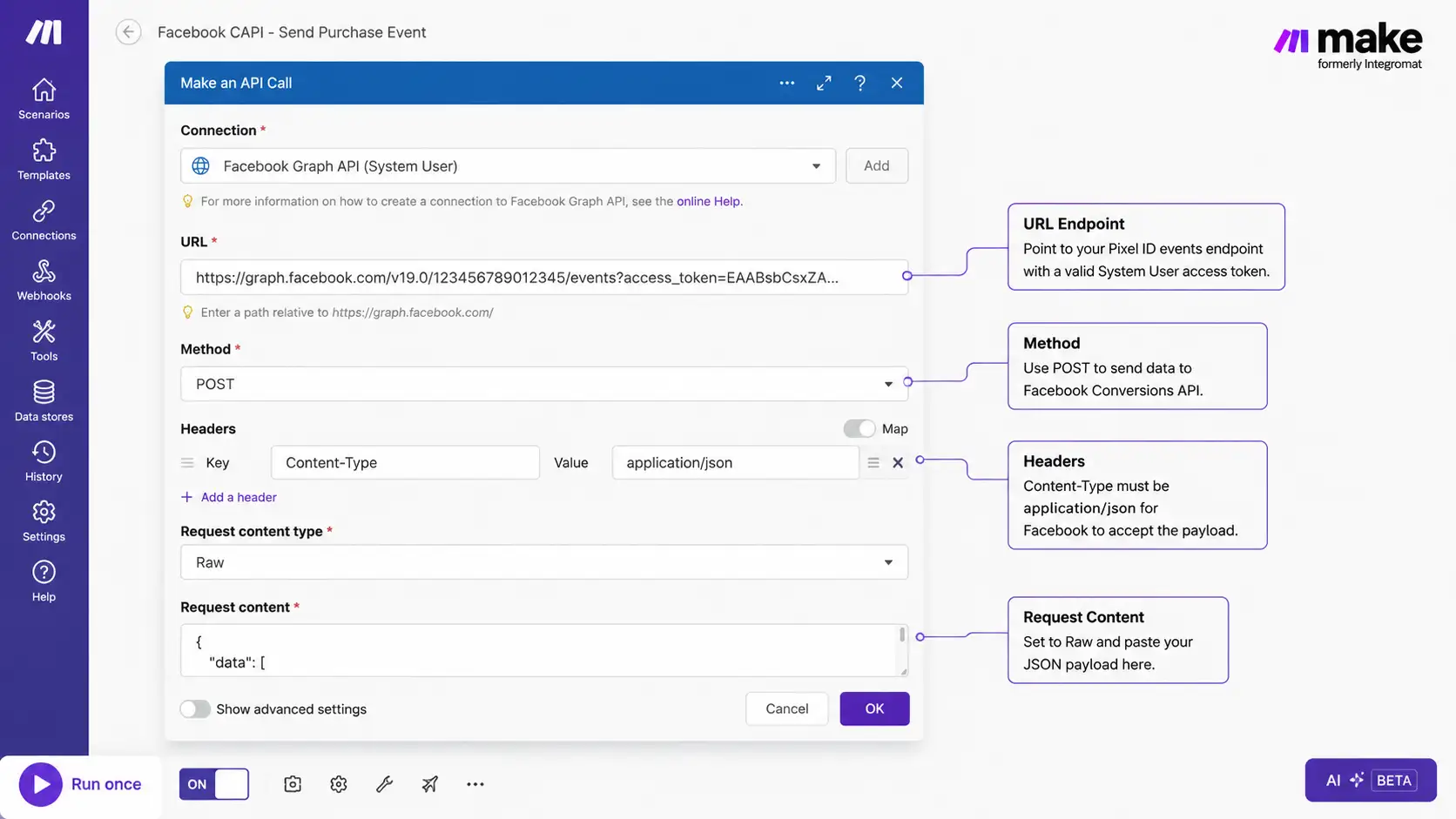
1. Configure the HTTP module
In Make.com, add a Make a request HTTP module with these settings:
- URL:
https://graph.facebook.com/{API_VERSION}/{PIXEL_ID}/events?access_token={ACCESS_TOKEN}— use the current Graph API version from Meta’s changelog rather than hardcoding an old one, since versions are deprecated roughly every two years. - Method: POST
- Headers:
Content-Typeset toapplication/json - Body type: Raw, with the JSON structure from above as the request content
2. Normalize and hash personal data
Meta’s Event Match Quality scoring depends on the em (email) and ph (phone) fields matching what Meta has on file — which requires hashing the value the same way Meta does.
Before hashing, normalize the string: lowercase it and trim any leading or trailing whitespace. The combined formula in Make.com looks like this:
{{sha256(lower(trim(1.email)); "hex")}}
Skipping the lower() or trim() steps produces a hash that technically validates as a string but won’t match Meta’s own hash of the same email — so the event passes the 400 check but contributes little to match quality.
3. Format the timestamp correctly
The event_time field must be a UNIX timestamp — seconds since January 1, 1970, as an integer, not a string. Make.com’s {{formatDate(now; "X")}} function produces exactly this format from the current execution time.
Common mistakes checklist
Before re-running the scenario, check the payload against each of these:
- Sending a plain-text email instead of a normalized, hashed string
-
Forgetting the array brackets around
emandph— they must be"em": ["hash"], not"em": "hash" -
Omitting
action_source(set to"website"for most web-based events) - A trailing comma after the last item in a JSON object — this is a strict syntax error that breaks the whole payload
Still getting a 400? Deeper issues
If the payload structure, hashing, and timestamp are all correct and it’s still failing, check these less obvious causes:
Deeper structural issues
- Case-sensitive event names. Standard event names must match Meta’s exact capitalization —
"Purchase", not"purchase". A lowercase event name is a common silent cause of rejected or unmatched events. - Expired access token. A System User token generated in Meta Business Manager doesn’t expire by default, but it can be revoked or regenerated. If a previously working integration suddenly fails with an authentication-related error, check whether the token is still valid in Business Manager.
- Leftover test event code. If you added a
test_event_codefield while testing and forgot to remove it before going live, Meta may reject or ignore production events sent with a stale test code. - Event deduplication. If you’re firing both a browser pixel event and a server-side event for the same conversion, both need a matching
event_idfield, or Meta will count the conversion twice — which won’t cause a 400, but will distort your reported numbers. See the CAPI deduplication guide for the exact event_id and event_name matching rules.
The May 2026 Make.com reauthorization issue
If this was working and suddenly broke
Meta updated its security requirements for Facebook Conversions API connections in Make.com, with a reauthorization deadline of May 9, 2026.
If your scenario uses Make.com’s built-in Facebook Conversions API connection (rather than a raw HTTP module with your own access token) and it stopped working around that date with no changes to your payload, this is the most likely cause.
The fix is to open the connection in Make.com’s connection settings and reauthorize it — this re-establishes the link under Meta’s updated requirements without needing to rebuild the scenario.
Testing before you go live
Don’t validate a new payload structure against live production traffic. In Meta Events Manager, open your pixel and go to the Test Events tab — this generates a unique test_event_code.
Add that code to your payload as an additional field inside the event object: "test_event_code": "TEST81014". Run the Make.com scenario once.
The test event should appear in Events Manager’s Test Events tab within a few seconds, confirming the payload structure is valid before you remove the test code and go live. You can also validate the JSON structure independently using Meta’s Conversions API payload helper.
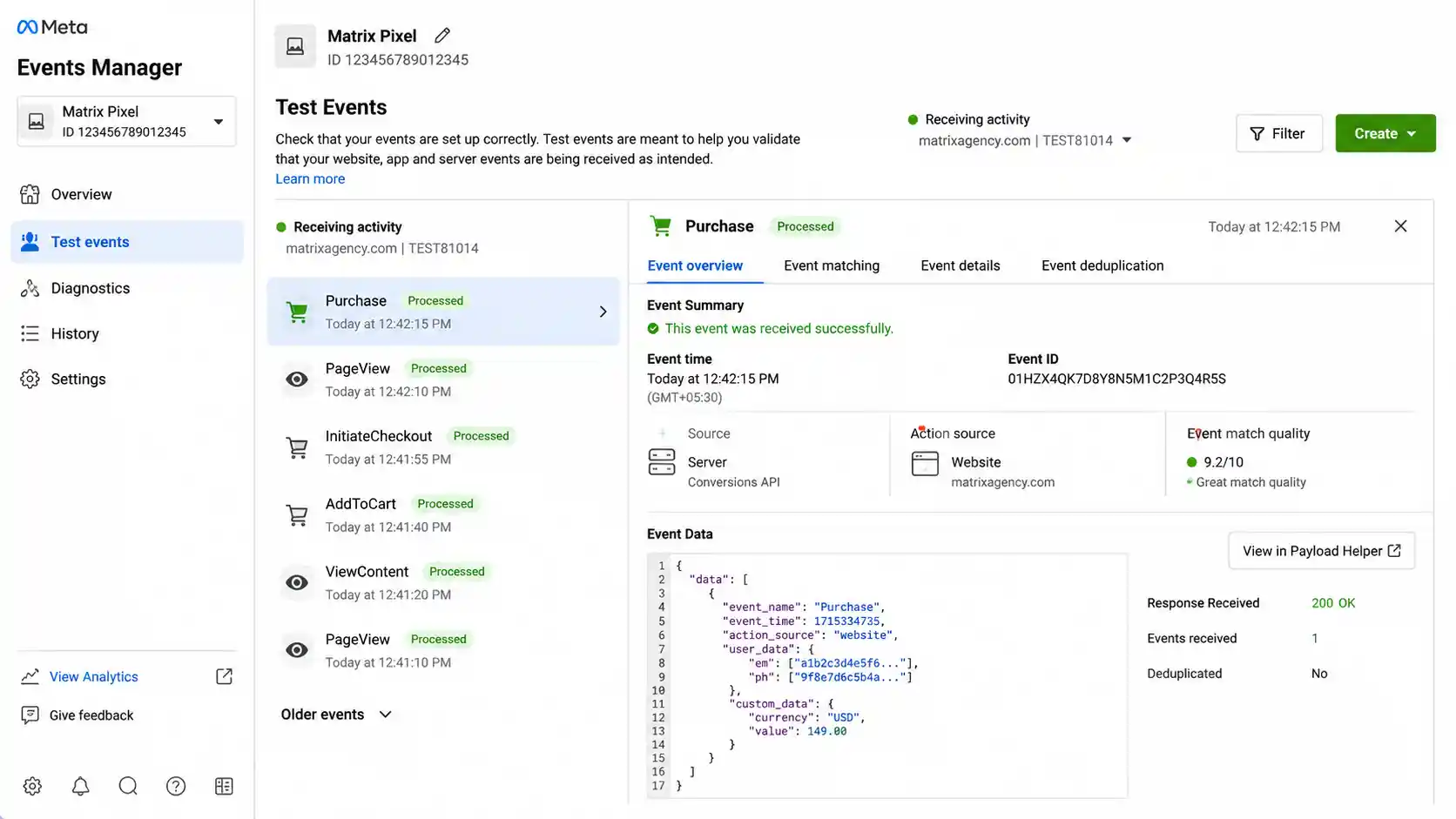
Once the test event is confirmed, remove the test_event_code field and the module will return 200 OK with an events_received count for live traffic.
Do you need Make.com for this at all?
Worth knowing before debugging further: Meta introduced a one-click Conversions API setup directly inside Events Manager in April 2026, designed for advertisers with a single, standard data source (typically a Shopify or WooCommerce store) who don’t need custom routing logic.
A Make.com scenario is still the right call when you need to combine data from multiple sources, apply business-specific filtering before an event is sent, route the same conversion to several ad platforms, or handle data that doesn’t come from a supported e-commerce platform — a custom CRM, for instance.
If your setup is a single store sending standard purchase events, it’s worth checking Meta’s native one-click option first; it may remove the need for this entire troubleshooting process.
Building the full attribution pipeline?
This payload fix is one piece. The full pipeline covers webhook capture, event deduplication across browser and server events, and routing conversions into your CRM — all built on Make.com.
FAQ – Facebook CAPI 400 Bad Request Make.com
What causes a Facebook CAPI 400 Bad Request error?
A 400 error almost always means the JSON payload is malformed in a specific way: the event isn’t wrapped in the required data array, personal data like email or phone is sent unhashed, event_time isn’t a valid 10-digit UNIX timestamp, or event_name doesn’t match Meta’s expected capitalization (e.g. “Purchase”, not “purchase”).
Does Facebook require hashed data for the Conversions API?
Yes. Fields like em (email) and ph (phone) must be normalized — lowercased and trimmed — then hashed with SHA-256 before sending. Unhashed values either get rejected or silently reduce your Event Match Quality score.
Can Make.com handle Facebook Conversions API events reliably?
Yes, for custom routing — combining multiple data sources, applying business logic, or sending to several destinations. Make.com’s HTTP module sends correctly formatted requests at volume. For a single standard data source, Meta’s one-click Conversions API setup (introduced April 2026) may cover the need without a custom scenario.
What does a successful Facebook CAPI response look like?
An HTTP 200 status with a JSON body containing an events_received count matching the number of events sent, a messages array (usually empty), and an fbtrace_id for debugging if needed.
Why did my working Facebook CAPI connection in Make.com suddenly start failing in May 2026?
Meta updated its security requirements for Facebook Conversions API connections, with a reauthorization deadline of May 9, 2026. Connections using Make.com’s built-in Facebook Conversions API module needed reauthorizing after this update or they’d stop running. If a previously working connection broke with no payload changes on your end, reauthorizing the connection in Make.com’s connection settings is the first thing to check.
Disclosure: Some links across this domain are affiliate links. If you sign up through them, CreatorOpsMatrix may earn a commission at no extra cost to you.
Note: Meta’s Graph API versions and Conversions API requirements change periodically. The payload structure and field names here reflect Meta’s documented requirements as of mid-2026 — always cross-check field requirements against Meta’s current Conversions API documentation before deploying to production.